USER’S MANUAL
For
CAVSRS - CAVS Reservation System
CAVSRS - CAVS Reservation System is an Android based
application program that manages song lists of Karaoke / Music players. The
program runs in Android tablets, Android smart phones,
or other Android devices. It displays up to 200,000 songs
in multiple languages, and instantly sort / search by index, title, or artist. It
can also scroll with momentum and jump to any page with a touch of your
fingertips.
CAVSRS program can import the song list using
a micro SD card, USB flash drive, or
WI-FI. The choice will depend on your Karaoke / Music player. If you have a CAVS
Karaoke player (such as JB-199, Karaoke Laptop / Touch
Screen PC, or PlayCDG KJ Deluxe 64 LT), CAVSRS program will automatically import the song list through WI-FI. For others, CAVSRS
will import the song list through micro SD card or USB flash drive.
CAVSRS program can also send direct commands to play / queue songs
in CAVS Karaoke players. It works as a WI-FI remote control with full
capability to select, program, play, or cancel songs. It can also store the
songs in Favorite Lists which can be created
for each individual user.
CAVS E-Songbooks are Android Touch Screen Tablets that are installed with
the CAVSRS program. If you are
looking to purchase the E-Songbook
tablets that include the CAVSRS
program, please go to www.cavsusa.com/product/H_player/E-Songbook.htm.
How to download CAVSRS program
- Using an Internet browser inside the Android device, go
to www.cavsusa.com/product/pc_player/cavsrs.htm.
- Purchase the CAVSRS program. Immediately after
the purchase, you will be given a link to download the CAVSRS.apk
file. Click on the link and select Save. Next choose a folder,
such as /sdcard, into which to download and save the file.
- After the download, use the File browser to locate the
saved CAVSRS.apk file. Tap on the file to start the installation. Follow
the instructions to complete the installation.
- Using an Internet browser in a PC, go to www.cavsusa.com/product/pc_player/cavsrs.htm.
- Purchase the CAVSRS program. Immediately after
the purchase, you will be given a link to download the CAVSRS.apk
file. Click on the link and select Save. Next choose a folder,
such as Desktop, into which to download and save the file.
- After the download, copy the CAVSRS.apk file onto a
micro SD card.
- Take out the micro SD card from your PC and insert it
into your Android device.
- Open the File browser in the Android device and find
the CAVSRS.apk file. Tap on the file to start the
installation. Follow the instructions to complete the installation.
How to activate CAVSRS program
- Start the program CAVSRS in your Android device.
- Application Registration page will pop-up with the
System ID.
- Using an Internet browser (from a separate window in
your Android device or from a separate PC), go to www.cavsusa.com/activation/cavsrs.htm.
- Input your email address (used during purchase) and
click Next.
- Input the System ID and click Submit. You will be given
a License ID with a message "Activation Successful".
- Input the License ID back in the Application
Registration page of your Android device. Press the Activate button.
- Upon successful activation, the Main Menu screen of
CAVSRS program will appear. If unsuccessful, you will be returned to
the Home screen of your Android device.
How to set up CAVSRS / Android
device and CAVS Karaoke player
1.
Setting up CAVS
Karaoke player
Wireless Router
(802.11 b/g/n) is required to facilitate the communication between the CAVS
Karaoke player and the Android device. All commonly found wireless routers
(Dlink, Cisco, Netgear, ...) are acceptable.
Turn on the
wireless router and set the router name (for example, CAVS ESB) and its
security settings (WAP/WEP). For detail instruction, please refer to the
User Manual of the wireless router.
For CAVS JB-199
players
·
Connect the JB-199 player to the
wireless router using a LAN (Ethernet) cable.
·
Turn on the JB-199 player
·
In the JB-199 player, go to Menu,
1.Jukebox and obtain the IP address of the JB-199 player.
For CAVS
Karaoke Laptops / Touch Screen All-In-One PCs
·
Turn on the CAVS Karaoke Laptop / Touch Screen AIO PC.
·
Set the WI-FI settings (Name,
Security) of the player to the wireless router.
·
Start the PlayCDG KJ Deluxe 64 LT
program in the player.
·
Using a mouse, click on the CAVS
Reservation System tab on the Quick Launch tool bar.
·
Obtain the IP address of the CAVS
Karaoke Laptop / Touch Screen AIO PC.
2.
Setting up
CAVSRS / Android devices
To work in
conjunction with CAVS Karaoke player
·
Turn on the Android device.
·
Tap on the Settings at Home screen.
·
Tap on the Wirelss & networks.
·
Tap on the Wi-Fi settings.
·
Select the wireless router (for
example, CAVS ESB).
·
Tap on the Connect.
·
Return to the Home screen.
To work as
stand-alone (or with a third party karaoke player)
·
Turn on the Android device.
·
Tap on the CAVSRS icon at Home
screen to start the program.
·
Tap on the Settings of the CAVSRS
program. Follow the instruction given in Section 7. Settings below to manually
load a song list using a micro SD card or UBS flash drive.
·
Return to the Main Menu of CAVSRS
program.
Instructions below apply to the
CAVSRS program running in any Android device with Android version 2.2 or
higher. Instructions written between two asterisk signs (*...*) apply only
to the CAVSRS program that is working in conjunction with a CAVS Karaoke
player.
Start the CAVSRS program in your
Android device - From Home screen of your Android device, tap on the CAVSRS
icon.
1.
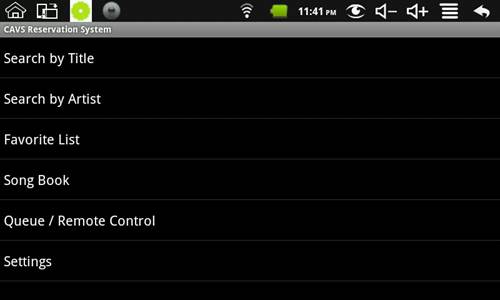
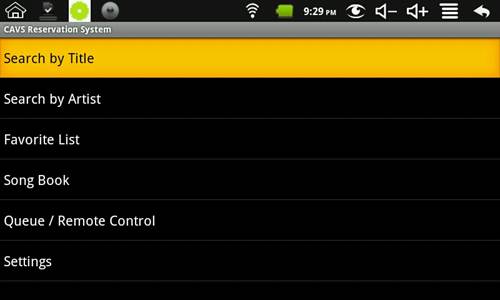
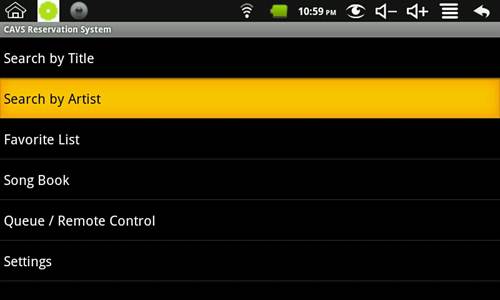
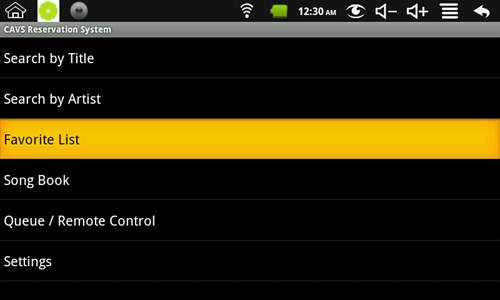
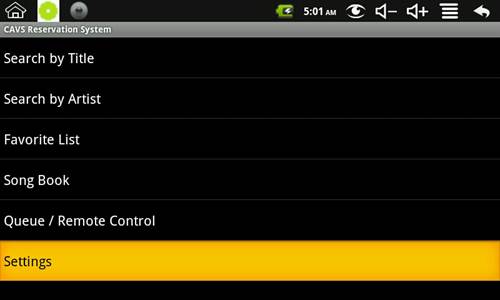
Main Menu - The Main Menu of CAVSRS
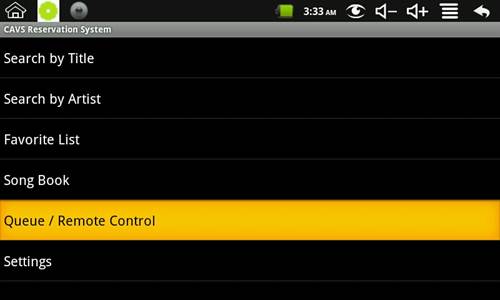
program will appear with the following selections.
o
Search by Title
o
Search by Artist
o
Favorite List - Display Favorite
lists
o
Song Book - Display total song list
o
Queue / Remote Control - Play,
reserve, store, cancel
o
Settings - Change settings
|
|

|
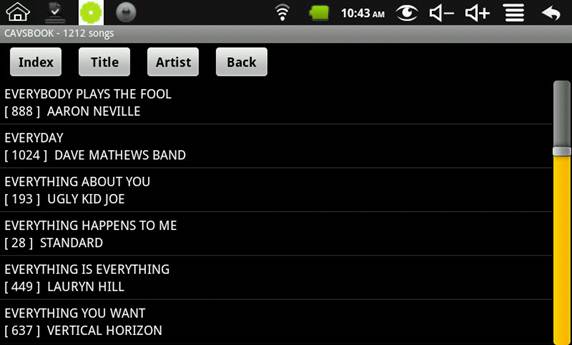
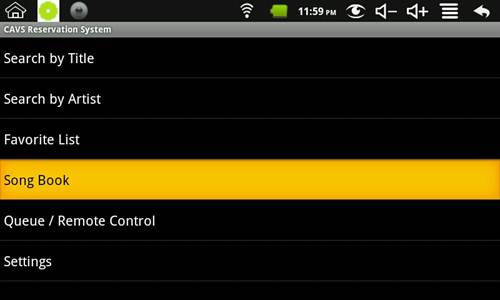
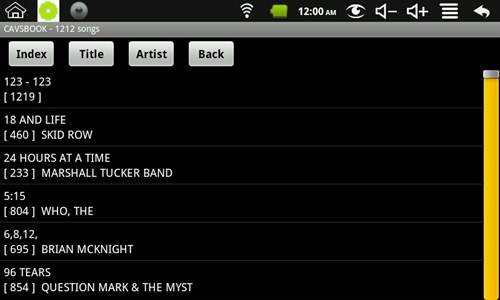
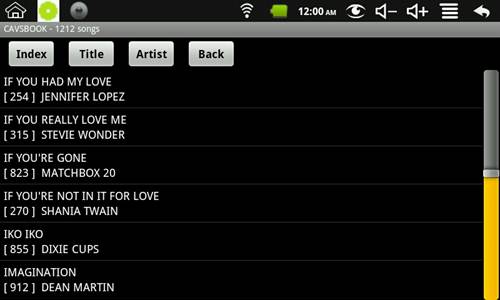
Tap on the Song Book. Total song list, sorted in title, will appear. You can
re-sort the list according to Index, Title, or Artist by pressing the
respective buttons. You can scroll down the list with
a stroke of fingertip or stylus. You can also instantly move down the
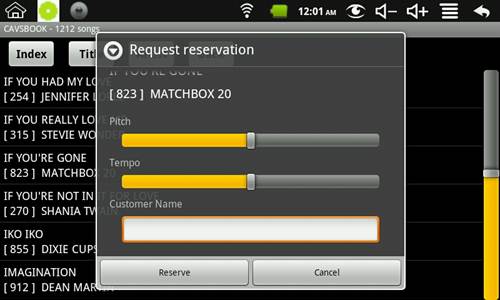
list by touching the yellow bar (position indicator). * Tap on a song you wish to select, and the
Request reservation window will appear. Press the Reserve button to reserve
the song or Cancel to return. *
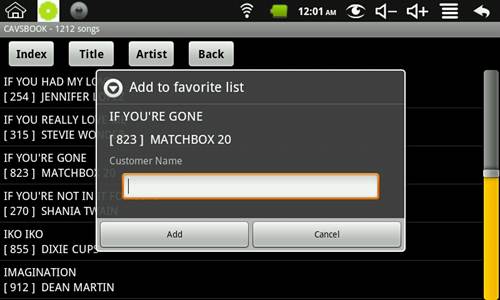
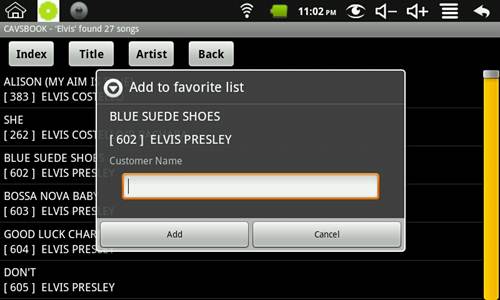
In the song list, you can also tap and hold on a song you wish to select. The
Add to favorite list window will appear. Tap on the input field to bring up
the keyboard. Type in the name of the Favorite List. Type in a new name
to create a new Favorite List. Press the Add button to add or Cancel to
return.* For further instructions on how to
use the Favorite List, go to the Section 5. Favorite List below. |
|
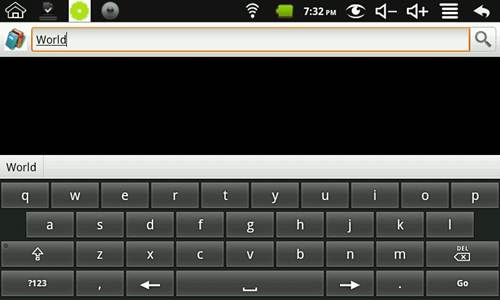
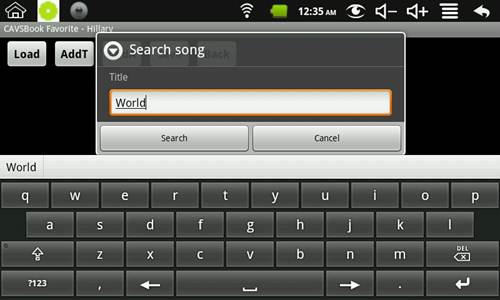
Tap on the Search by Title. Input field and the keyboard will
appear as below . Type in the word you wish to search, for example,
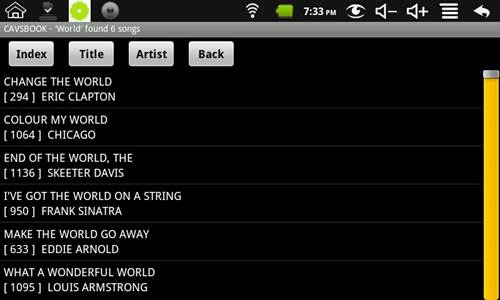
World. Press Go. Search result will appear with the
matching songs. You can sort this list according to Index, Title, or
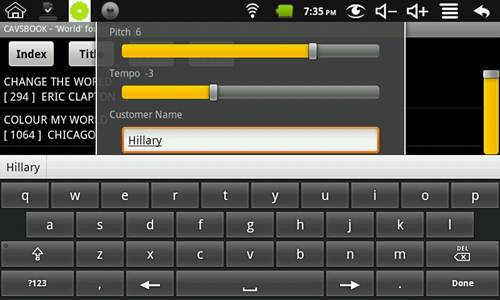
Artist by pressing the respective buttons. * Tap on a song you wish to select and the
Request reservation window will appear. Press the Reserve button to
reserve the song or Cancel to return. Optional: Preset the Pitch (Key) level, Tempo
level, and the Customer Name. To input the Customer Name, tap on the input
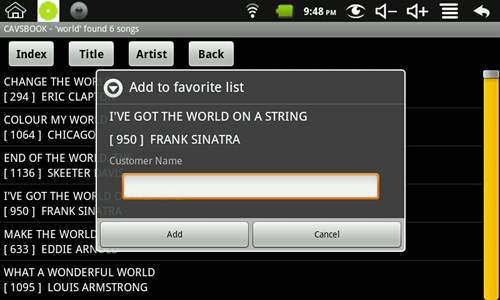
field to bring up the keyboard.* * At the search result window, tap
and hold on a song. The Add to favorite list window will appear. Tap on the
input field to bring up the keyboard. Type in the name of the Favorite
list. Type in a new name to create a new Favorite list. Press the Add
button to add or Cancel to return.* For further instructions on how to
use the Favorite List, go to 5. Favorite List. |
|
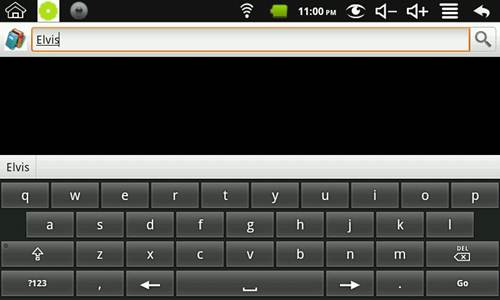
Tap on the Search by Artist. Input field and the keyboard will
appear as below. Type in the word you wish to search, for example,
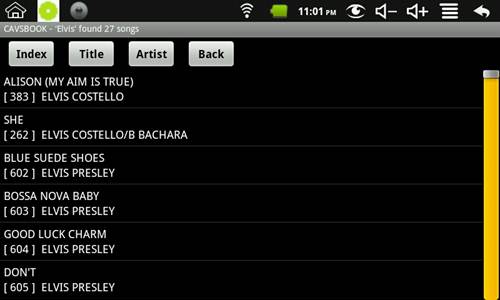
Elvis. Press Go. Search result will appear with the
matching songs. You can sort this list according to Index, Title, or Artist
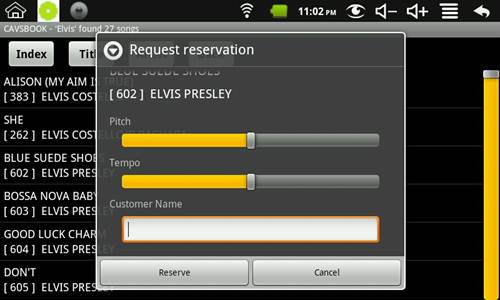
by pressing the respective buttons. * Tap on a song you wish to select and the
Request reservation window will appear. Press the Reserve button to
reserve the song or Cancel to return. Optional: Preset the Pitch (Key) level, Tempo
level, and the Customer Name. To input the Customer Name, tap on the input
field to bring up the keyboard.* * At the search result window, tap
and hold on a song you wish to select. The Add to favorite list window will appear. Tap on the
input field to bring up the keyboard. Type in the name of the favorite
list. Type in a new name to create a new favorite list. Tap on Add
button to add to the favorite list or Cancel to return.* For further instructions on how to
use the Favorite List, go to 5. Favorite List. |
|
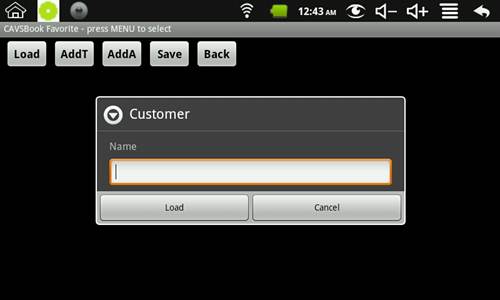
*Tap on the Favorite List.* *A pop-up window will appear
asking for the name of the Favorite List that you wish to view. A previous
Favorite List in memory may automatically appear. Press the Load button for a
new Favorite List. Tap on the input field to bring up
the keyboard and type in the name. Press the Load button below the
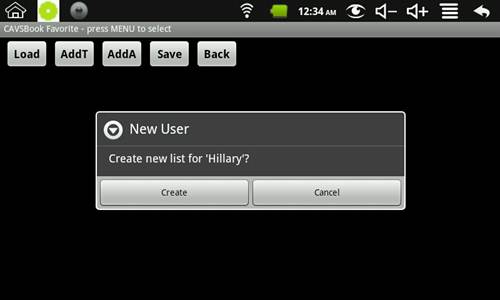
name. If you wish to create a new Favorite List, type in a new name and press
the Load button under the name. In the following pop-up window, press the
Create button.* *To add songs into the Favorite
List, press the AddT button to search songs by title or the AddA button to
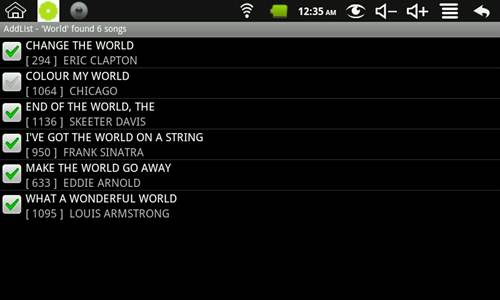
search by artist.* *From a search result, select the songs you wish to add to the Favorite List. Note that you can select multiple songs by placing check marks on the left.* *Press the Return button (for
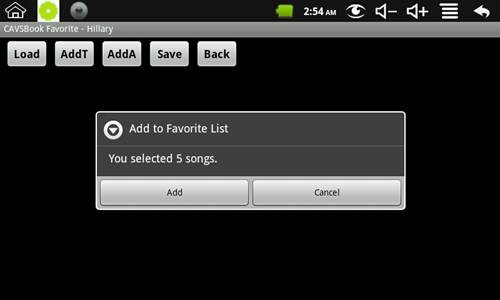
example here, it is on the right upper corner) to move the selected songs
into the Favorite List. For some Android devices, the Return may be a hardware
button located outside the touch screen. Press the Add button in the
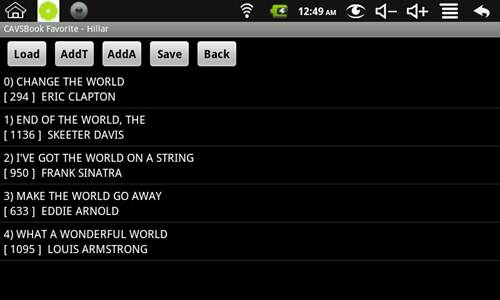
following pop-up window to confirm.* *The selected songs will appear in
the Favorite List. You can continue to add the songs using the AddT or
AddA buttons. Be sure to press the Save button before moving to another
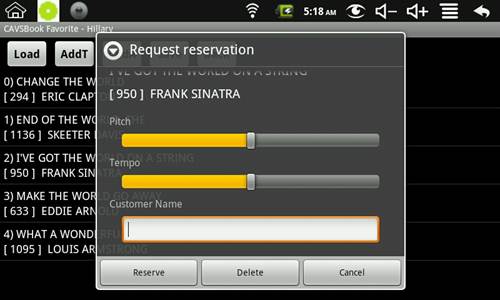
screen to save the selected songs in the Favorite List.* *From the Favorite List, you can
tap on a song to Reserve, Delete, or Cancel. Reserve will send the song to
the Queue,
Delete will remove the song from the Favorite List, and Cancel will return you to the
Favorite List.
|
|
*Tap on the Queue / Remote
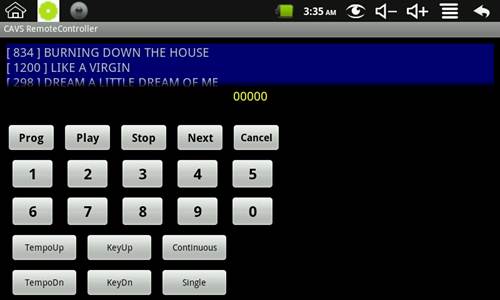
Control* *Following Remote Control panel
will appear showing also the previously reserved songs. To see all the
reserved songs, you can scroll down the Queue with a fingertip or stylus. Press the Play button to begin
playing the songs in the Queue. You can select to play the songs continuously
or one song at a time by pressing the Continuous / Single buttons
below. The Tempo and Key (Pitch) levels can also be chosen by pressing
the Up and Down buttons. Use the Next button to skip to the
next song in the Queue. You can also cancel a song in the Queue by
pressing the song number first followed by Cancel.* *You
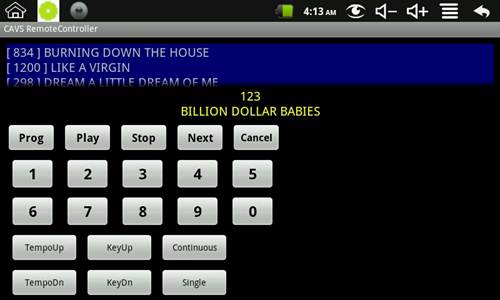
can use the numeric buttons to select a song, for example 123. The
number 123 will feedback from the CAVS Karaoke player and register in yellow
color with a song title under the song number. You can next press the Prog
button to reserve the song in the Queue or press the Play button to begin
playing.* |
|
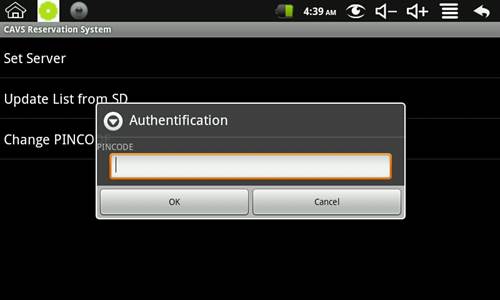
Tap on the Settings. A password is required to enter.
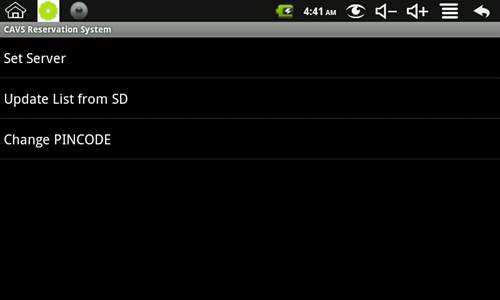
Tap on the input field to bring up the keyboard and type in the password. The selections inside the Settings
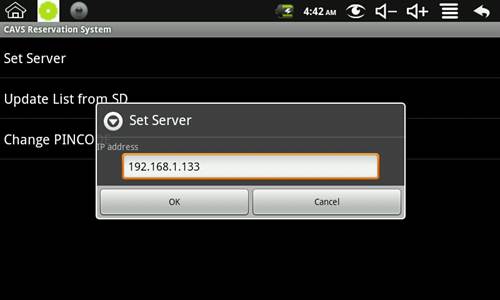
will appear. *Tap on the Set Server and the
following pop-up window will appear. Obtain the IP address of the
corresponding CAVS Karaoke player. See How to set up CAVSRS / Android
device and CAVS Karaoke player above to find the IP address. Tap on the
input field to bring up the keyboard and type in the IP address. Press OK.* To load the song list using SD
card, press the Update List from SD button. Follow the instruction to
manually load a song list into the CAVSRS / Android device. To change the password for the
Settings, press the Change PINCODE button. Follow the instruction to change
the password. |
- CPU 800 mhz or higher
- Android 2.2 or higher
- 512MB or higher
- WI-FI 802.11 b/g